Show a quick tour on the first app launch!
Did you build an app for an important gathering such as a festival, concerts or conference with a long list of people coming from various cities? Or, your app is about your home town for foreigners, tourists who come to visit your place and you are presenting them with all interesting outdoor activities and possible entertainment events, special deals, restaurant and cafe bar places across the city? Such apps contain a large number of various content types.
Sometimes important pieces of information can slip through the cracks when having too many screens in your app. For that reason it would be best to give an overview to your app user what to expect while using your app.
Implementing Shoutem’s Onboarding feature, you can easily call attention to the most important key features of your app per your choice and that way highlight valuable information. No one can say they didn’t see it!

These onboarding pages will be displayed only on app’s first launch and won’t repeat in every other launches like e.g. Interstitial ads, if your app user went through the onboarding pages.
Install Onboarding extension in the builder
Most extensions in the builder are already pre-installed, but this particular extension needs to be installed from the Extension marketplace before you could complete configuring onboarding screens in the Shoutem builder area.
In the builder under the Extensions tab, click on the + symbol from where the Extension marketplace window will be opened. You can use the Search bar for easier exploration.
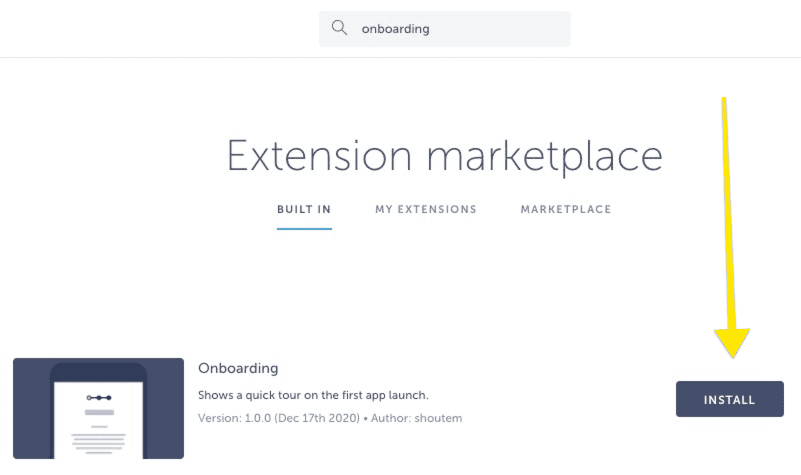
Your Onboarding extension is successfully installed!
Since this extension doesn’t have any screens that would be present in the app all the time like most of the content, screens in the Onboarding extension and respective content will be configured in the builder Settings page of your app.
Onboarding Settings page
Open your app in the builder, navigate to the Settings page from the left menu bar, and select the Onboarding setting under Extensions settings. By default, the feature will be disabled so you will need to click on the Enable button before start using it.
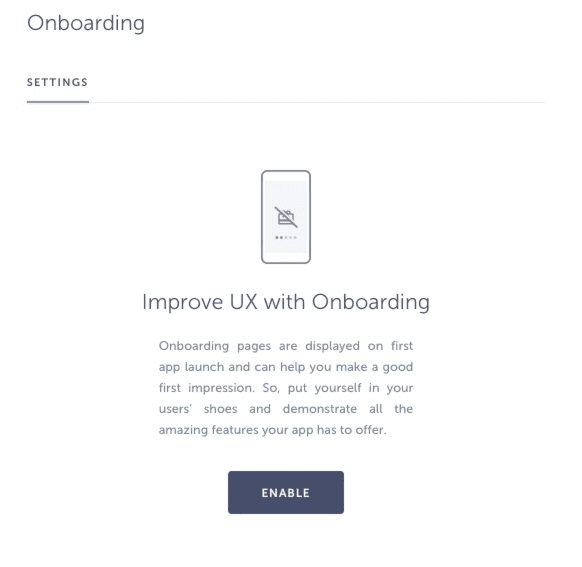
Configure your onboarding pages
Each page has the following options which you will be editing individually:
- Page Title
- Page Description
- Text position – available top, middle and bottom positions
- Background image – required size 1080x19210px, only static images are supported
At the moment, all fields are mandatory or pages won’t be created. Here you can use your creativity and through a few pages highlight gems of your app. Your images can present anything, from screenshots of the existing app screens to pure graphic designs related to the app’s content.
If you would like to delete the page, simply click on the garbage button, and the page will be deleted from the sequence.
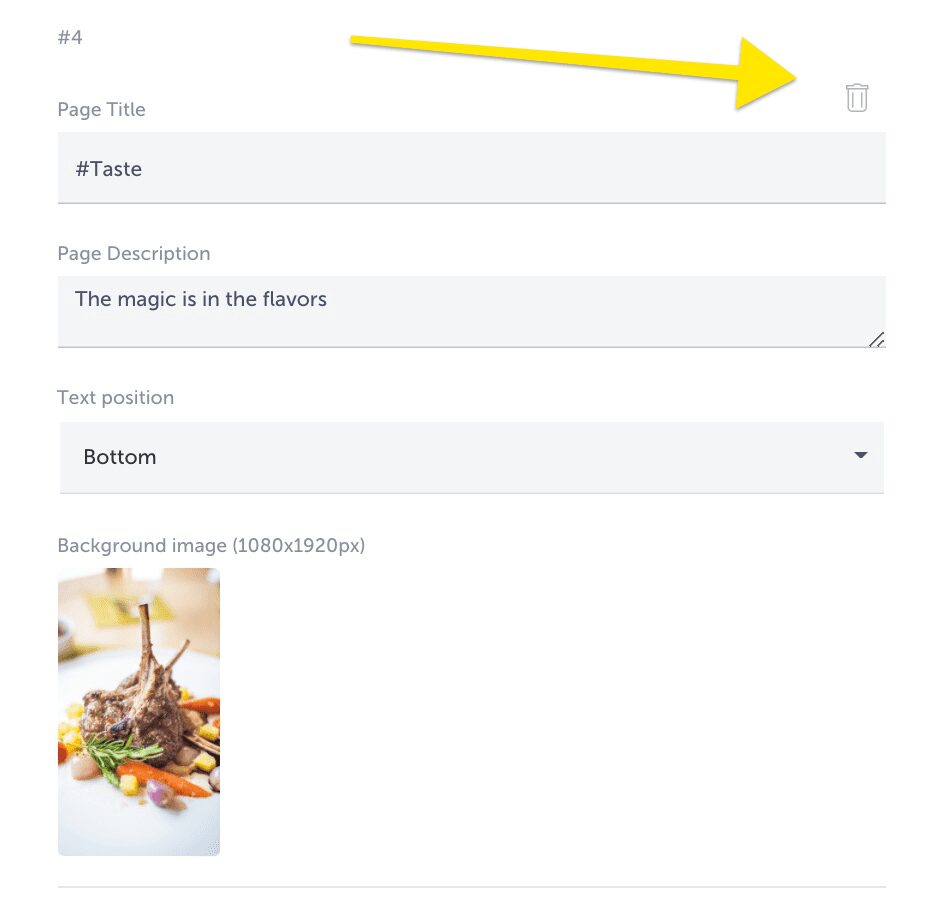
After each change on your onboarding pages, do not forget to Save it by clicking on the Save button at the bottom of the page.
How many pages can I create in the onboarding process?
You can have either one or up to 10 onboarding pages. The choice is yours.
Style customization options
You can use existing style options from our Style Customize theme tab and improve the appearance of the wording.
The following settings are applying to this feature:
- Navigation bar (header) → Icons color: effects on Continue/Skip button in the top right corner
- Typography → Subtitle: effects on the color, text size, and style of the Page Title text
- Typography → Text: effects on the color, text size, and style of the Page Description text
- Overlays → Text and Icon color on images with overlays: effects on the three dots button at the bottom
Have in mind these Style settings are not applying only on the Onboarding pages, but throughout text and buttons in the app.
How can I delete the Onboarding feature from the app if I do not want to use it anymore?
This can be achieved with two actions:
Action 1.
Delete all the pages from your sequence, and make sure the last page is left blank with no content. If there is no content in the last/first page (#1), the feature will not be displayed in your app.
Action 2.
Completely uninstall the extension from your app – reverse process. In the builder under the Extensions tab, select More section and find the Onboarding extension on the list. Select the feature, and there you will see a garbage button as well. When you click on it, the extension will be deleted completely from your app.
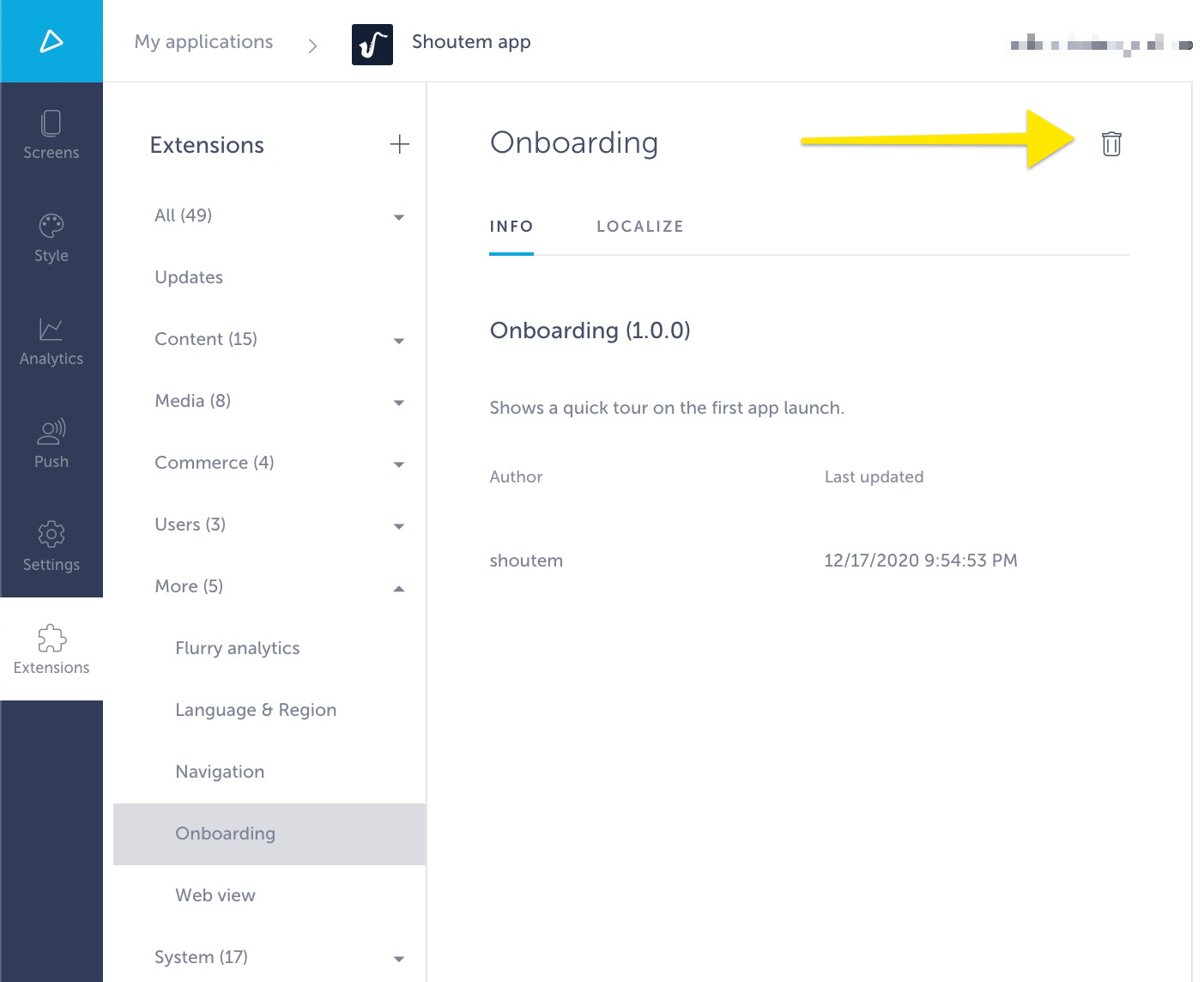
Make sure to click on the Republish button so your changes make place in the live app!
For existing published apps only!
Since your app is already live in both Stores, after installing and setup of the Onboarding feature, please contact our Support team for resubmission. Simple click on the Republish button will not be sufficient and most likely will cause crashing issues.